

Kraken’s Spot and Futures APIs use separate keys, so the Kraken tab in Blockhouse asks for four: a read-only and a trading key for each. Use the Kraken Pro website for these steps.
1
Get your Kraken account
Ask your Bequant Support Rep to open a Kraken account for this strategy, with derivatives unlocked and the Unified Wallet enabled, and to give you access to it.
2
Check the Unified Wallet and derivatives
In the sub-account on Kraken Pro, the portfolio overview should show Main · Unified and a Derivatives card. If either is missing, ask Bequant to enable them before you create the keys.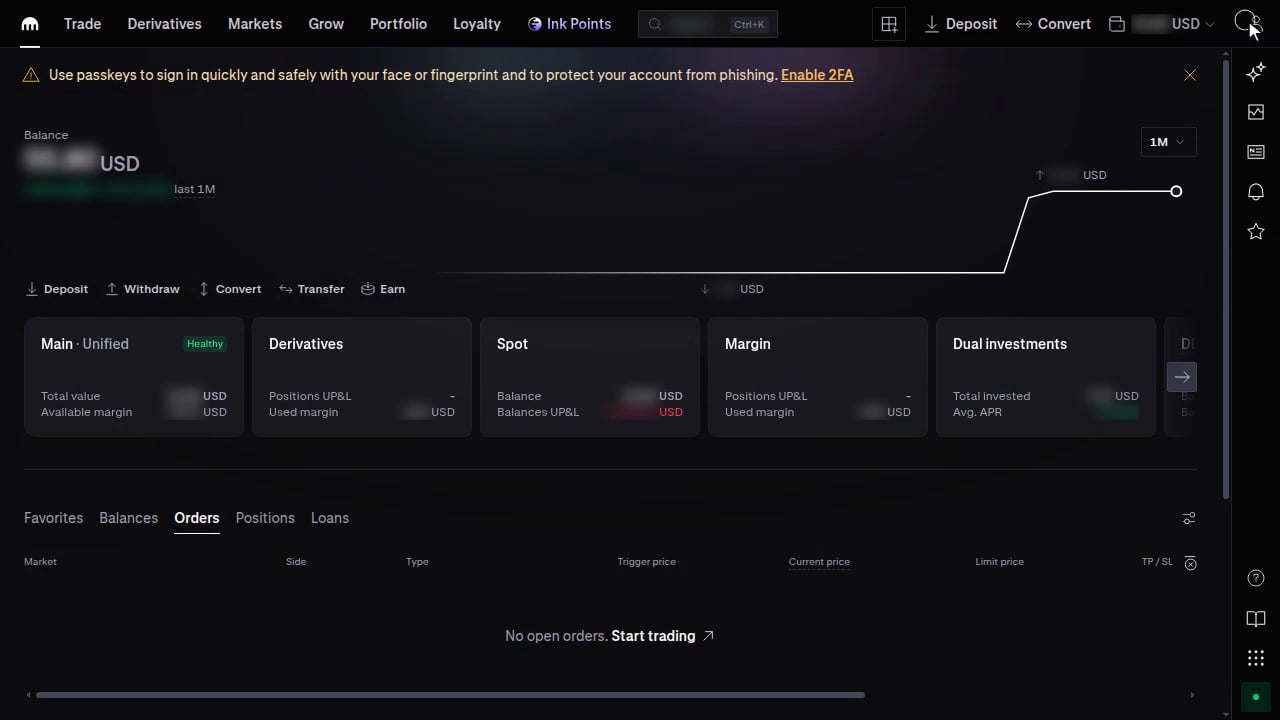
3
Create the Spot read-only key
In Blockhouse, on the Kraken tab of the Credentials step, choose Copy → Comma on the Read-only API IPs.On Kraken Pro, open the profile icon → Settings → Connections & API, then under Spot trading API choose Create API key. Enter a name, such as
Blockhouse read-only, and tick only:- Funds permissions: Query
- Orders and trades: Query open orders & trades and Query closed orders & trades
- Data: Query ledger entries and Export data
4
Create the Spot trading key
In Blockhouse, choose Copy → Comma on the Trading API IPs, then create a second Spot key the same way, named such as
Blockhouse trading, with those IPs. Tick the same permissions, plus Create & modify orders and Cancel & close orders. Leave Deposit, Withdraw and Earn off.Paste its API Key and Private Key into Spot Trading API Key and Spot Trading Private Key.5
Create the Futures read-only key
On the same page, under Futures trading API, choose Create API key and set:
- General API: Read only
- Withdrawal API: No access
- IP address restriction: on, with the Read-only API IPs
6
Create the Futures trading key
Create a second Futures key with:
- General API: Full access
- Withdrawal API: Full access, so the strategy can move margin between this account’s Futures and Spot wallets. On a Futures key, it can’t send funds anywhere else.
- IP address restriction: on, with the Trading API IPs
7
Finish in Blockhouse
In Bequant PRO, open Accounts and copy the Account name of the account whose Exchange is Kraken. In Blockhouse, on the Kraken tab, enter it in Bequant account ID for Kraken.Check that every key field on the tab is filled in and both IP boxes are ticked. Set up any other exchange from the Bequant guide, then submit the Credentials step.
Kraken sources
Kraken sources
Checked against Kraken’s support centre and API docs on 20 October 2026, and on screen the same day. Kraken renames menus from time to time; if a label differs, use the nearest match.